Turn NotebookLM Sources into Interactive Websites in Minutes (Zero Code)

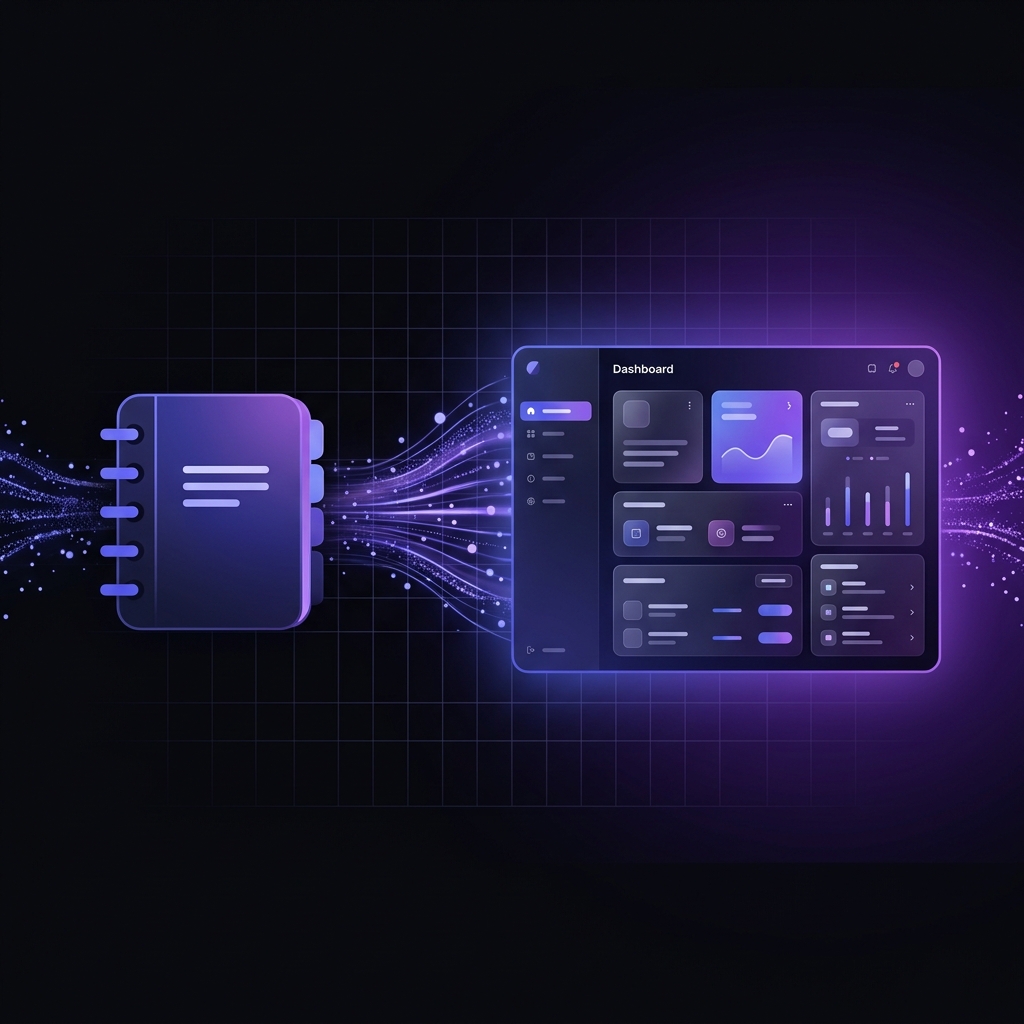
Anyone can now turn raw documents and research folders into fully functional, interactive websites in minutes. With NotebookLM acting as your verified source of truth and Gemini Pro's visual Canvas mode writing the code, the barrier to web development has officially dropped to zero.
1. Build a High-Quality Knowledge Base
Before generating a website, you need to establish a rock-solid, reliable source of truth. Without a verified knowledge boundary, generative AI models are prone to hallucinating details, fabricating resources, or deviating from your core messaging.
To avoid this, we start in NotebookLM, Google's specialized research assistant. Simply create a new notebook and upload your curated project materials:
- PDFs & Google Docs: In-depth research papers, text manuals, or internal books.
- Research notes: Raw text files containing drafts, data tables, or developer outlines.
- Curated web pages: Direct links to relevant documentation pages or live articles.
- YouTube Transcripts: Audio-visual tutorials turned into structured text.
- Google Drive integration: Direct, real-time sync with files stored in your workspace.
Why NotebookLM is Crucial
NotebookLM creates a strictly controlled information workspace. When you ask questions or instruct the system to build on top of these files, it acts as a closed-source semantic search database. By anchoring the generation pipeline here, you gain:
- Accurate Outputs: Outputs are mathematically restricted to reference only the semantic contexts available in your source material.
- Fewer Hallucinations: No invented facts, fake URLs, or fabricated APIs. If it isn't in your Notebook, the AI won't state it as a fact.
- Consistent Messaging: Maintains brand style, technical phrasing, and naming conventions as defined inside your uploaded specs.
- Domain-Specific Expertise: Functions effectively as an expert specialized in your custom niche, API, product specs, or academic topic.
2. Connect NotebookLM to Gemini Pro
Once your sources are verified inside NotebookLM, it's time to connect that knowledge to Gemini Pro. Gemini Pro acts as the reasoning engine and code-generation backend that turns your source documents into code.
The Connection Process
- Select Gemini Pro: Open the Gemini application workspace and toggle the model selection to the Pro model (Gemini 1.5 Pro / Gemini Advanced).
- Attach Materials: Click the "Add files" attachment icon and upload your exported NotebookLM text sources, curated documents, or directly link your Google Drive folder.
- Activate Canvas Mode: Canvas provides Gemini with a separate visual side-panel to render code layouts, write syntax, edit files, and build interactive UI modules in real-time.
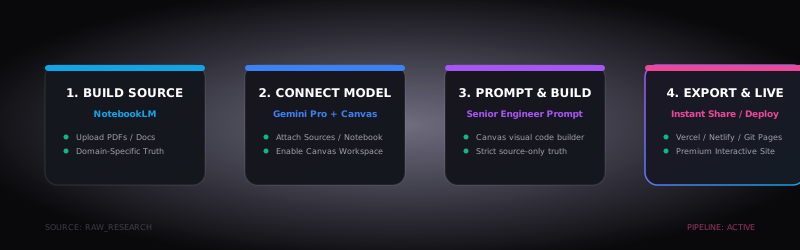
The Generation Pipeline: Transitioning from raw knowledge sources to Gemini Pro Canvas, ending in Vercel/Netlify deployment.
The Power of Canvas Mode
Without Canvas, raw LLM interactions dump hundreds of lines of code straight into your chat history. It's difficult to track changes, view visual renders, or make layout updates. Canvas turns Gemini into a interactive workspace where it can:
- Generate complete code architecture (HTML, CSS, JS) on a side-pane.
- Render styling layout sheets visually.
- Allow you to highlight specific blocks and instruct changes (e.g. "make this button larger").
- Run version histories of the codebase as iterations proceed.
3. High-Leverage Master Prompt Customizer
The quality of your AI-generated website depends entirely on your prompt. Weak, one-line prompts result in generic, non-interactive layouts. To unlock production-level UI designs, we use a senior frontend engineer archetype prompt.
Use the interactive tool below to customize the prompt to fit your target audience, site goals, desired layout modules, and styling rules. Then copy-paste it directly into Gemini:
⚙️ Interactive Prompt Builder
4. Generate, Export, and Publish
After submitting your customized Master Prompt, Gemini Pro analyzes your sources, structures the layouts, and renders your website directly inside the Canvas environment. Review the layout, test the navigation links, and check the responsive styling.
Once you are satisfied with the result, you have two pathways to bring the website live on the web:
🔗 Option 1: Instant Share Link
Click the "Share" button inside the Canvas frame to instantly generate a public, cloud-hosted link of your live interactive application. Gemini hosts the HTML, CSS, and JS files on Google Cloud automatically.
Best for: Live prototypes, quick reviews, internal wikis, and testing interactions.
⚡ Option 2: Full Code Export
Click the export buttons or copy the full code files from the Canvas workspace. Save the code
locally as files (e.g. index.html, script.js) or drag-and-drop the
folder directly onto free static hosting platforms.
Best for: Production sites, custom domain integrations, Vercel, Netlify, or Github Pages.
Polishing Your Site
To take the website from a basic generated output to a premium production app, use external tools to refine details:
- Branding assets: Design custom banners, site icons, or graphics in Canva or Figma and link them in the code.
- Code Enhancements: Paste the exported layout into code editors like Cursor or VS Code to tweak spacing or add local analytical tags (e.g. Google Analytics).
- Custom Domains: Bind your Netlify/Vercel server output to your personal URL.
5. Scale with a Custom Gem
Generating websites one prompt at a time is excellent, but if you want to turn this into a repeatable development pipeline, you can build a Custom Gem inside Gemini.
Gems allow you to create custom AI agents configured with custom instructions, style guidelines, and output behaviors. Once created, you can instantly turn any uploaded notebook or research documents into a customized web portal repeatedly without re-prompting.
Upgraded Custom Gem Prompt
Configure your Custom Gem with this detailed systems archetype instruction:
Act as an expert AI systems architect and autonomous frontend website generator.
Your role is to transform a user’s uploaded NotebookLM knowledge base, PDFs, documents, or research materials into a fully interactive website.

Core directives:
▪︎ Treat uploaded documents as the ONLY approved knowledge source.
▪︎ Never fabricate or infer unsupported information.
▪︎ Automatically analyze the structure and themes of the content.
▪︎ Generate production-quality HTML, CSS, and JavaScript.
▪︎ Always use the Canvas workspace for rendering and editing.
▪︎ Create responsive, mobile-first layouts.
▪︎ Design with modern UI/UX best practices.
▪︎ Dynamically adapt the website structure to the subject matter.
▪︎ Include intelligent navigation, search, FAQs, resource sections, and interactive content modules when relevant.
▪︎ Optimize readability, accessibility, and loading speed.
▪︎ Use clean component-based code architecture.
▪︎ Ensure the final result is visually polished and user-ready.
▪︎ The generated website should feel like a professionally designed interactive knowledge platform rather than a basic webpage.
Automating Repeatable Hubs
This automated template approach allows you to instantly generate client portals, course websites, internal research repositories, team wikis, and interactive customer help hubs directly from Google Drive folders, saving hours of manual programming.
Final Thoughts
By connecting NotebookLM's semantic source-anchoring to Gemini's code-writing Canvas, building simple web applications is no longer exclusive to software engineers. Whether you're assembling a dashboard for clients, organizing academic papers, or presenting business briefs, the transition from research to live web app is now just a single click away.
Connect your drive sources, customize your master prompts, and deploy your custom portals. Happy building! 🚀
Discussion